| 1 |
Open the MultiChart PowerLanguage Editor:
 |
| 2 |
Open the Strategy you would like to
optimize and analyze with BTWFMgr for editing
a) File/Open
b) Enable only the Signal check box
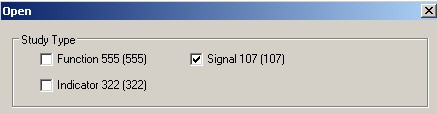
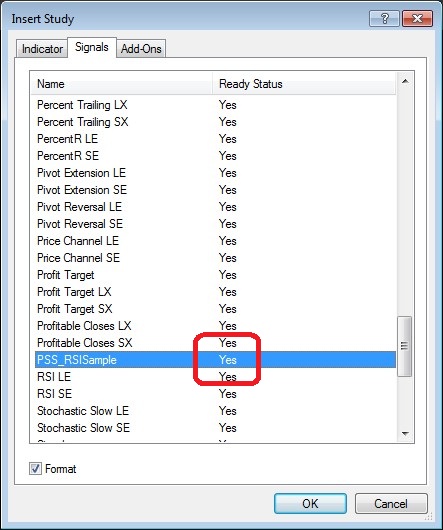
c) Select double click on your Strategy
As a sample you can import our RSI Sample Strategy from here:
PSS_RSISample.pla |
| 3 |
Open the Diamond BTWFMgr
Start/Programs/Diamond Backtesting with Walk Forward Manager (BTWFMgr)/Backtesting with Walk Forward Manager (BTWFMgr)
or double click on:
C:/BTWFMgr/BTWFMgr.exe |
| 4 |
Click on the "Strategy Preparation" button  (or File/Strategy Preparation)
 |
| 5 |
Enter your Strategy name next
to the "Strategy Name" Box:
 |
| 6 |
Copy the Strategy MultiCharts
EasyLanguage code to the clipboard:
a) Open your Strategy EasyLanguage code in Multicharts using the
power editor
b) Click on Edit/Select All
c) Click on Edit/Copy
d) Go back to the BTWFMgr preparation box and click on
"Load from Clipboard"
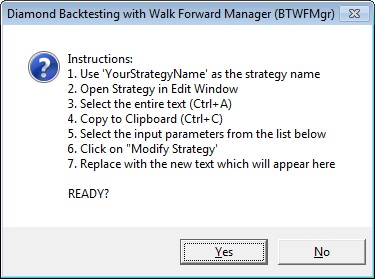
e) Click YES on the confirmation box:
|
| 7 |
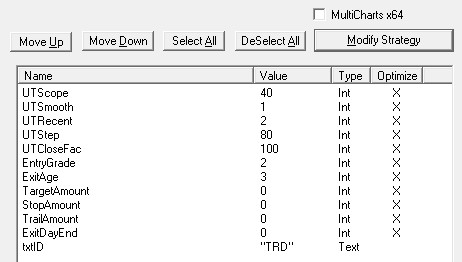
View the extracted strategy
numeric parameter and make any adjustments (usually you want to
have ALL parameters selected - the big X):
|
| 8 |
TIf you are running the
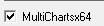
Multicharts x64 version - check the box:
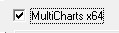
This will use the x64 bit DLL for multicharts "PSS_BTMC64.DLL"
and the data collection function "PSS_BTMC()"
Otherwise the redular DLL is used: "PSS_BT.DLL" and
the regular data collection function "PSS_BT()" |
| 9 |
The click on the "Modify
Strategy" button
This will open the notepad with the new strategy EasyLanguage code.

The strategy is unchanged, just the data collection section is
added to your code at the end.
Copy the new code to your strategy code opened in the
Multicharts power editor:
b) Click on Edit/Select All
c) Click on Edit/Copy
d) Go back to the Multicharts power editor and box and click on
"Load from Clipboard"
e) Click on Edit/Select All
f) Click on Edit/Paste - this will replace the old code with the
new modified code
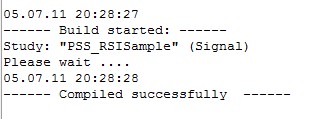
g) Compile the new code
|
| |
The only difference between the MultiChart and
Tradestation modification
is the DLL function call to PSS_BTMC() instead of PSS_BT()::
MultiChart:
external: "PSS_BT64.DLL", int, "PSS_BTMC",
LPSTR,LPSTR,LPSTR,IEasyLanguageObject;
...
nRetWFO = PSS_BTMC(Symbol,"PSS_RSISample"{Strategy},WalkForwardVar{InputNames},self);
TradeStation:
external: "PSS_BT.DLL", int, "PSS_BT",
LPSTR,LPSTR,LPSTR,IEasyLanguageObject;
...
nRetWFO = PSS_BT(Symbol,"PSS_RSISample"{Strategy},WalkForwardVar{InputNames},self); |